

 TERMINAL
 API
APISettings
Configure interface, widgets, margin accounts, trading reports, and API tokens in the Trading terminal settings
Access settings by clicking the gear icon in the topbar of the Trading terminal.
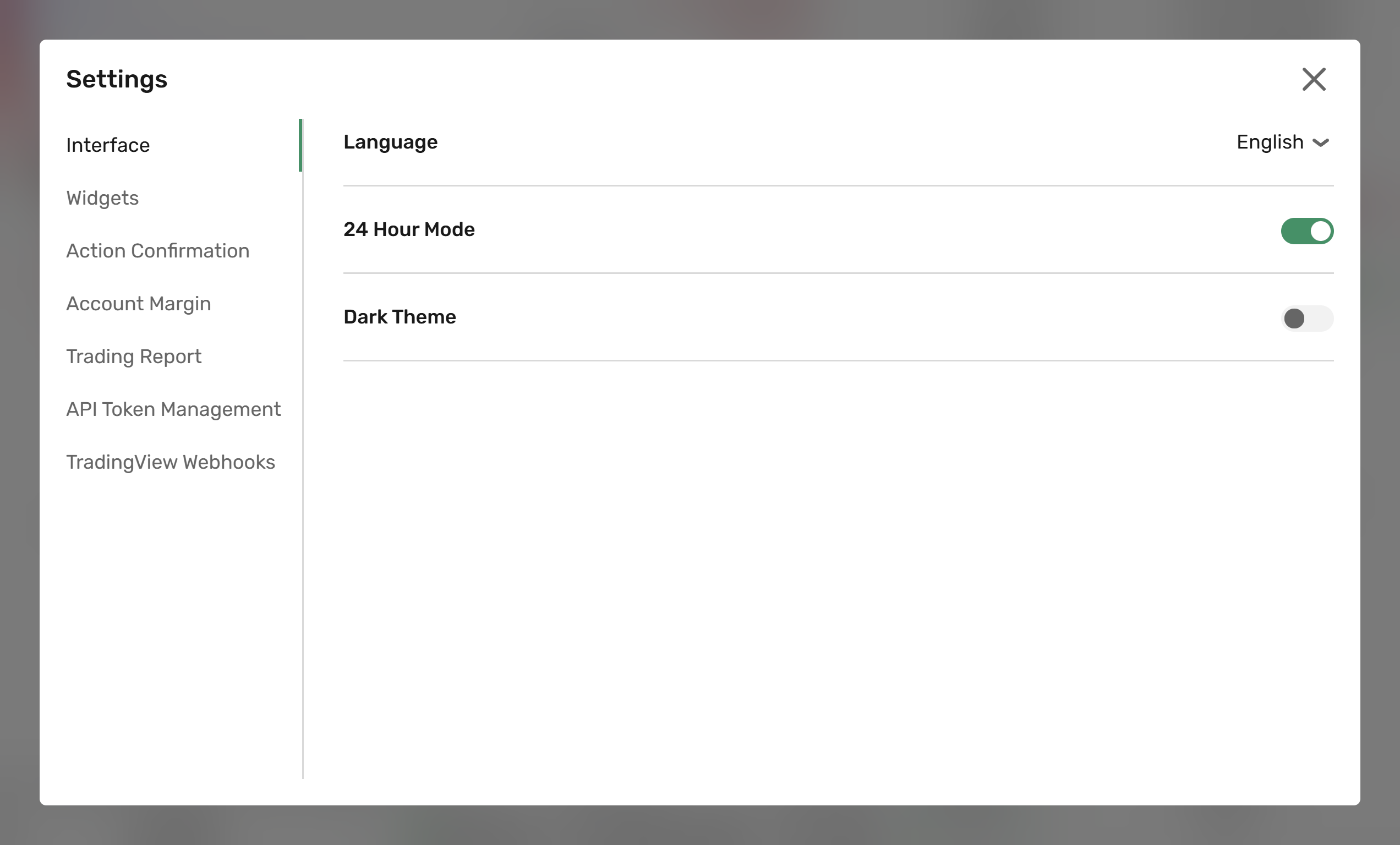
Settings are organized into tabs:
- Interface: Configure language, time display, and visual theme.
- Widgets: Customize widget display options.
- Action Confirmation: Choose which actions require additional confirmation.
- Account margin: Manage collateral assets for margin trading.
- Trading report: Generate comprehensive trading and account reports, including an official Client Account Statement.
- API token management: Generate and manage tokens for accessing the Trading API.
- TradingView Webhooks: Configure TradingView webhook alerts for automated order execution.
Interface
Configure global interface preferences:
Language
Select the interface language from the dropdown menu.
24 hour mode
- Enable: Display time in 24-hour format.
- Disable: Display time in 12-hour format with AM/PM.
Dark theme
- Enable: Apply dark color scheme.
- Disable: Apply light color scheme.
Widgets
Configure display options for the following widgets.
Price chart
Display positions
When enabled, open positions are shown on the chart along with:
- Position size and current PnL.
- Quick access to edit price triggers and close positions.
- Color coding: Long positions (green), Short positions (red).
Display orders and triggers
When enabled, the following orders and triggers are displayed on the chart:
- Active Limit and Stop orders with order type, price, and amount.
- Stop loss, Take profit, and Trailing stop triggers.
- Quick access to edit triggers and cancel orders.
- Color coding: Buy orders (green), Sell orders (red).
Display executed orders
When enabled, executed orders are shown on the chart with order type indicators:
- Green
Btag for Buy orders. - Red
Stag for Sell orders.
Clicking B or S will open details of one or more orders that were executed during the candle interval.
Market quick trade panel
When enabled, a panel is displayed on the chart for placing Market orders with:
- Quick amount selection from preset values.
- Leverage ratio input (when applicable).
Amount presets can be configured in the corresponding field displayed when the option is enabled.
Limit quick trade panel
When enabled, a panel is displayed on the chart for placing Limit orders with:
- Quick amount selection from preset values.
- Leverage ratio input (when applicable).
Amount presets can be configured in the corresponding field displayed when the option is enabled.
Action Confirmation
Choose which trading actions require an additional confirmation dialog before execution.
Cancel orders
- Enable: A confirmation dialog is displayed before canceling orders.
- Disable: Orders are canceled immediately without confirmation.
This setting applies to single and bulk order cancellations from the Open Orders widget and the Price chart.
The confirmation dialog includes a "Don't ask again" checkbox. To skip the confirmation for future order cancellations, check this box.
Full Close Positions
- Enable: A confirmation dialog is displayed before closing positions.
- Disable: Positions are closed immediately without confirmation.
This setting applies to single and bulk position closures from the Open Positions widget.
Limit order cross-TOB warning
- Enable: A confirmation dialog is displayed before a Limit order is submitted if its price crosses the current top-of-book — that is, when a Buy price is at or above the best ask, or a Sell price is at or below the best bid. The dialog shows the entered price and the current best bid/ask, and includes a Do not show this warning again checkbox.
- Disable: Crossing Limit orders are submitted immediately without the warning.
The warning is enabled by default. The dialog checkbox and this toggle share the same global setting and stay in sync.
The warning is informational only — it does not block the order. If you confirm, the order is submitted with the original price. The warning applies only to standard Limit orders; Stop-limit, Take-profit-limit, IOC, FOK, and other order types are not affected. If best bid or best ask data is unavailable (empty book or disconnected feed), the order is submitted without the warning.
Account margin
Control which assets can be used as collateral for margin trading.
Asset list
The following information is provided about each asset:
Asset
The alphabetical code of the asset.
The first asset in the list is the root asset of the platform.
Caption
The asset name.
Available
The balance available for trading, calculated as Total – Halted, where Halted represents funds locked for pending Limit orders.
Total
The complete asset balance including locked funds.
Margin ratio
The percentage of asset value that can be used as collateral for margin trading.
Use as margin
Enable this toggle to use the asset as collateral for margin trading.
Configure which assets can be used as collateral for margin trading by toggling the Use as margin setting for each asset.
Only assets with Margin ratio greater than 0 (zero) can be enabled.
The platform root asset is enabled by default and can't be disabled.
Filtering options
Click the funnel icon to configure the asset list display:
- Show/Hide zero balances: Control visibility of assets with zero balance. By default, hidden.
- Show/Hide assets unused as margin: Control visibility of assets with disabled margin usage.
- Show/Hide assets with zero margin ratio: Control visibility of assets that can't be used as collateral. By default, hidden.
Trading report
Generate comprehensive reports containing:
-
Trade history
- Closed positions
- Executed orders
- Individual trades
-
Transfers history
- All account transfers
-
Account statistics
- Total balance
- Realized PnL
- Position swaps
- Position funding
- Commissions
- Margin Balance, Equity, Margin Used, Free Margin, Margin Level, Unrealized PnL, and As Of — the same account summary values as the HTML statement, see Client Account Statement
To generate a report:
- Select a custom period of time (UTC time), or generate a report for your entire account history using the All data range. The following timeframe presets have been implemented for your convenience:
- Today
- Current: week, month, quarter
- Previous: week, month, quarter
- All data.
- Click Download.
Once generated, the report will be automatically downloaded to your computer as a zipped file.
Client Account Statement
Along with the CSV file, the downloaded archive contains an HTML Client Account Statement: a self-contained document you can open directly in your browser, without any additional software. Besides your trade and transfer history, the statement can include:
- Your broker's trading entity details and logo, when configured.
- The statement period, currency, and the generation date and time, in UTC.
- Your account details: legal name, account number, and account type, when available.
- A point-in-time account summary — Margin Balance, Equity, Margin Used, Free Margin, Margin Level, and Unrealized PnL — as of the end of the selected period, or the latest available snapshot while the period is still open, with the exact time printed next to the summary.
- Legal texts configured by your broker, such as a disclaimer or a confidentiality statement.
A field your broker hasn't configured is left out of the statement rather than shown blank. If the requested period ends before account summary data becomes available, the statement states that account summary data isn't available for that period, instead of showing the summary.
To save the statement as a PDF file, open the downloaded HTML file in your browser, then use your browser's Print dialog and select Save as PDF.
API token management
Generate tokens for accessing the Trading API:
- Limit: 10 tokens per account
- Validity: 1 year
- Management: Can be revoked or deleted at any time
To generate a token:
- Click + Create new.
- In the New API token popup, fill in a Name for the token, to help you identify it later.
- Click Create.
The newly generated token will be displayed and available for copying, along with its name and expiration date.
The token only reveals once in the creation popup. Copy and store it securely before closing the popup. The token can't be retrieved again after closing.
TradingView Webhooks
Use TradingView Webhooks to automatically execute orders on your trading account based on alerts from TradingView. When a TradingView alert triggers, it sends a webhook request to B2TRADER, which places an order according to the parameters specified in the alert message.
This feature supports all market types: Spot, CFD, and Perpetual Futures.
Set up the webhook
Step 1: Create a webhook API key
To create a webhook API key in the Trading terminal:
- Click the gear icon in the topbar to open Settings.
- Navigate to the TradingView Webhooks tab.
- Click + Create new.
- In the popup, fill in a Name for the key.
- Click Create.
The popup displays the generated API key and the webhook URL. Copy both values and store them securely.
The API key is shown only once at creation. It can't be retrieved after closing the popup.
The following limits apply:
- Maximum 10 active keys per user
- Each key is valid for 1 year from creation
- Keys can be revoked at any time
Step 2: Configure the alert in TradingView
- In TradingView, create a new alert or edit an existing one.
- In the Notifications section, enable Webhook URL.
- Paste the webhook URL copied from the terminal.
- In the Message field, enter the alert body in JSON format (see Alert message format).
- Save the alert.
When the alert triggers, TradingView sends the message to B2TRADER, and the order is placed automatically.
Alert message format
The alert message is a JSON object with the following fields:
| Field | Required | Description |
|---|---|---|
apiKey | Yes | Webhook API key generated in the terminal |
accountId | Yes | Trading account ID |
symbol | Yes | Market symbol with type prefix (see Symbol format) |
side | Yes | Order side: buy or sell |
quantity | Yes | Order quantity in base asset |
orderType | No | market (default), limit, stop, or stop_limit |
price | Conditional | Limit price. Required for limit and stop_limit orders |
stopPrice | Conditional | Stop price. Required for stop and stop_limit orders |
leverage | No | Leverage ratio. Applicable to CFD and Perpetual Futures markets only |
takeProfit | No | Take profit trigger price |
stopLoss | No | Stop loss trigger price |
timeInForce | No | gtc (default), ioc, fok, or day |
comment | No | Custom comment, up to 256 characters |
deduplicationId | No | UUID for idempotency. Duplicates within 5 minutes return a cached response |
Symbol format
The symbol must include a market type prefix:
| Market type | Prefix | Example |
|---|---|---|
| Spot | spot. | spot.btc_usdt |
| CFD | cfd. | cfd.eur_usd |
| Perpetual Futures | perp. | perp.btc_usdt |
Examples
Market buy order (Spot):
{
  "apiKey": "wh_key_your_api_key_here",
  "accountId": "your_account_id",
  "symbol": "spot.btc_usdt",
  "side": "buy",
  "quantity": "0.01"
}
Limit sell order with TP/SL (CFD):
{
  "apiKey": "wh_key_your_api_key_here",
  "accountId": "your_account_id",
  "symbol": "cfd.eur_usd",
  "side": "sell",
  "orderType": "limit",
  "price": "1.0900",
  "quantity": "1000",
  "leverage": "10",
  "takeProfit": "1.0800",
  "stopLoss": "1.0950",
  "timeInForce": "gtc"
}
Manage webhook API keys
To view or manage your webhook API keys, navigate to Settings > TradingView Webhooks.
The following information is provided about each key:
| Column | Description |
|---|---|
| Name | The name assigned to the key at creation |
| Status | Current key status: Active, Revoked, or Expired |
| Created | The date and time the key was generated |
| Expires | The date and time the key expires |
To revoke a key, click the Revoke button next to the key entry.
Rate limits
Webhook requests are limited to 5 requests per second per user. If this limit is exceeded, the request returns a 429 error code and the order isn't placed.
Troubleshooting
The following table describes common error scenarios and their solutions:
| Issue | Cause | Solution |
|---|---|---|
Invalid API key | The API key is incorrect or wasn't copied in full | Generate a new key and update the TradingView alert |
API key expired | The key has passed its 1-year validity period | Generate a new key |
API key revoked | The key was manually revoked | Generate a new key |
Invalid symbol format | The symbol is missing a market type prefix | Add the prefix: spot., cfd., or perp. |
Price required for limit order | A limit or stop_limit order is missing the price field | Add the price field to the alert message |
Rate limit exceeded | More than 5 requests were sent within 1 second | Reduce the alert frequency in TradingView |
Account not found | The accountId doesn't exist or isn't accessible | Verify the account ID in the terminal |
Dernière mise à jour le